
You add a simple code snippet to your functions.php, refresh your site, and suddenly see this:
Warning: Cannot modify header information – headers already sent by (output started at /wp-content/themes/your-theme/functions.php:1) in /wp-includes/pluggable.php on line 1416
Your site might still work, or it might be completely broken. This error is the bane of WordPress developers—seemingly caused by nothing, yet blocking critical functions like logins, redirects, and CSV downloads.
I’ve fixed this error hundreds of times. It’s always whitespace. Always. Let’s find it and kill it.
What “Headers Already Sent” Actually Means
HTTP works by sending headers first (content type, cookies, redirects), then the body (HTML content). If any output (even a single space) is sent before headers, PHP throws this error.
Common causes:
- Whitespace before <?php or after ?> in files
- UTF-8 BOM (Byte Order Mark) encoding
- Echo/print statements before header functions
- Plugin conflicts outputting early
- Corrupted file uploads with hidden characters
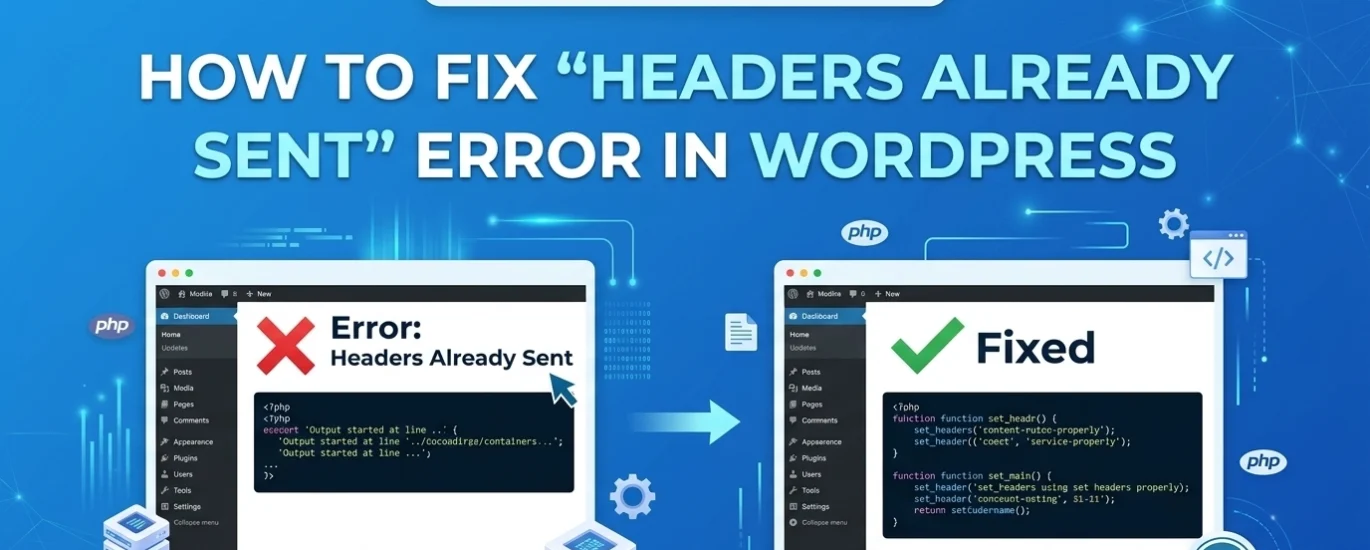
[IMAGE PLACEHOLDER: Screenshot showing the “Headers Already Sent” error message with file path and line number highlighted]
Method 1: Remove Whitespace from Theme Files (The #1 Fix)
Step 1: The error message tells you exactly where the problem started. Note the file path and line number.
Step 2: Access the file via FTP/cPanel File Manager. Do NOT use WordPress built-in editor—it often adds whitespace.
Step 3: Check for spaces or blank lines before the opening <?php tag:
php
Copy
<– These spaces cause the error
<?php
function my_function() {
// code
}
Step 4: Check for spaces or blank lines after the closing ?> tag:
php
Copy
<?php
function my_function() {
// code
}
?>
<– These spaces cause the error
(blank line here also causes error)
Step 5: The fix: Remove all whitespace before <?php and remove the closing ?> entirely from PHP-only files.
Best Practice: Leave ?> off the end of functions.php, wp-config.php, and plugin files. It’s valid PHP and prevents accidental whitespace.
Before:
php
Copy
<?php
// code
?>
After:
php
Copy
<?php
// code
// No closing tag, no whitespace
Method 2: Fix UTF-8 BOM Encoding
Some text editors add invisible BOM characters at the start of files.
Step 1: Download the problematic file (usually functions.php or wp-config.php).
Step 2: Open in a proper code editor:
- VS Code: Check bottom-right for “UTF-8” encoding
- Notepad++: Encoding → Convert to UTF-8 without BOM
- Sublime Text: File → Save with Encoding → UTF-8
Step 3: Re-upload the file via FTP (not WordPress editor).
Step 4: If you don’t have a code editor, use this PHP script to clean BOM from all files:
Create remove-bom.php in WordPress root:
php
Copy
<?php
// Run this once, then delete it
function removeBOM($file) {
$content = file_get_contents($file);
$bom = pack(‘H*’,’EFBBBF’);
$content = preg_replace(“/^$bom/”, ”, $content);
file_put_contents($file, $content);
}
$iterator = new RecursiveIteratorIterator(
new RecursiveDirectoryIterator(__DIR__),
RecursiveIteratorIterator::SELF_FIRST
);
foreach ($iterator as $file) {
if ($file->isFile() && $file->getExtension() === ‘php’) {
removeBOM($file->getPathname());
}
}
echo “BOM removal complete. Delete this file.”;
?>
Visit yoursite.com/remove-bom.php once, then delete the file.
Method 3: Check wp-config.php Specifically
This file is the most common culprit.
Step 1: Download wp-config.php via FTP.
Step 2: Check line 1 character by character. There should be NOTHING before <?php.
Step 3: Check after the final ?> if present. Remove the closing tag entirely.
Step 4: Common mistake—accidental space when editing:
php
Copy
<?php <– Good
<?php <– BAD (space before)
<?php <– Good
Step 5: If you recently added constants, ensure they’re inside the PHP tags:
php
Copy
<?php
define(‘WP_DEBUG’, true);
// Good
?>
<?php
define(‘WP_DEBUG’, true);
// BAD – closing and reopening PHP creates output
?>
Method 4: Plugin Conflict Isolation
Sometimes plugins output content early.
Step 1: Rename /wp-content/plugins to /plugins_backup.
Step 2: Create new empty plugins folder.
Step 3: Move plugins back one by one, refreshing after each, until the error returns.
Step 4: When you find the offending plugin, check its main PHP file for:
- Whitespace before <?php
- Echo/print statements outside functions
- Direct file access not wrapped in if (!defined(‘ABSPATH’)) exit;
Step 5: Contact plugin developer or fix whitespace yourself (updates will overwrite your fix).
Method 5: Fix Output Buffering Issues
Some hosting configurations have output_buffering disabled.
Step 1: Check php.ini or create phpinfo.php:
php
Copy
<?php phpinfo(); ?>
Search for “output_buffering”. If Off or 0, enable it.
Step 2: Add to php.ini:
ini
Copy
output_buffering = 4096
Step 3: Or add to .htaccess:
apache
Copy
php_value output_buffering 4096
Note: This is a band-aid. Fix the actual whitespace issue instead of hiding it with buffering.
Method 6: Debug with Output Buffering Off (For Developers)
To find exactly where output starts, temporarily disable buffering.
Step 1: Add to wp-config.php:
php
Copy
ini_set(‘output_buffering’, ‘off’);
ini_set(‘implicit_flush’, ‘on’);
Step 2: Reload the page. The error will now show the exact character position where output started.
Step 3: Remove these lines after debugging—they slow down your site.
FAQs: Header Horror Stories
Why does this happen after editing functions.php?
You likely added a blank line before <?php or after ?>. Use FTP and a proper code editor, not WordPress’s built-in theme editor.
Can I fix this without FTP access?
If you have cPanel File Manager, yes. If you only have WordPress admin and the error blocks login, you need FTP or host intervention.
Will this break my site completely?
Usually not. You’ll see the error message at the top, but the site often works. However, it breaks redirects, so logins and form submissions fail.
Why does it say “pluggable.php” when that’s not the problem?
pluggable.php is trying to send headers (like setting cookies), but output already started in the file mentioned before it. Fix the first file, not pluggable.php.
Can plugins cause this even if I didn’t edit them?
Yes, if they were uploaded via FTP in binary mode instead of ASCII mode, or if they have BOM encoding. Re-upload plugins in ASCII mode.
Conclusion: Whitespace Vanquished
The “Headers Already Sent” error is maddening because it’s invisible—a space you can’t see, a BOM character hiding in byte order. But with systematic checking of wp-config.php, theme files, and plugin encoding, you eliminate the phantom output.
Prevention Checklist:
- [ ] Never use WordPress built-in editor for PHP files
- [ ] Always edit in UTF-8 without BOM encoding
- [ ] Remove closing ?> from PHP-only files
- [ ] Use FTP in ASCII mode, not binary
- [ ] Test code on staging before production
Whitespace is the enemy of headers. Keep your code clean, your encoding correct, and your redirects will flow freely.