
You try to load your site and see database errors. Posts disappear. Settings reset. Or you get the dreaded “Error establishing database connection.”
Database corruption happens—server crashes, plugin conflicts, failed updates, or just bad luck. If you can’t access phpMyAdmin (or don’t know how), WordPress has a built-in repair mode that requires zero technical skill.
I’ve walked clients through this over the phone. It’s that simple. Let’s repair your database.
When to Use This Method
Use wp-config.php repair when:
- You see “Database error” messages
- Posts or pages show 404 errors randomly
- Settings won’t save or reset spontaneously
- You suspect table corruption but lack phpMyAdmin access
- You want a quick first step before deeper diagnostics
[IMAGE PLACEHOLDER: Screenshot of WordPress database repair screen showing list of tables with repair status]
Method 1: Enable Repair Mode
Step 1: Access your site files via FTP, cPanel File Manager, or your host’s file manager.
Step 2: Locate wp-config.php in your WordPress root directory (usually public_html).
Step 3: Download a backup copy of wp-config.php to your computer. Never edit without a backup.
Step 4: Open wp-config.php in a text editor (Notepad++, VS Code, or even Notepad).
Step 5: Add this line just above /* That’s all, stop editing! Happy publishing. */:
php
Copy
define(‘WP_ALLOW_REPAIR’, true);
Step 6: Save and upload the file back to your server (if using FTP).
Method 2: Run the Repair
Step 1: Visit https://yoursite.com/wp-admin/maint/repair.php
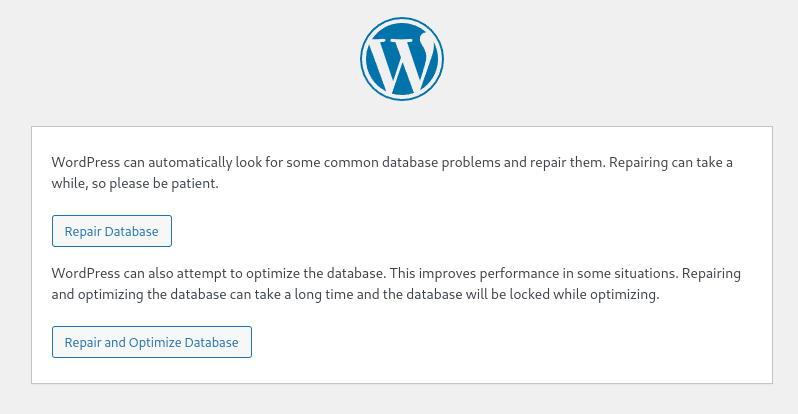
Step 2: You’ll see a page with two options:
- Repair Database – Fixes corruption without optimizing
- Repair and Optimize Database – Fixes + optimizes tables (takes longer)
Step 3: Click “Repair Database” first. For large databases (100MB+), repair only to avoid timeouts.
Step 4: Wait for the process to complete. You’ll see a list of tables with status messages:
- wp_posts: Table is okay
- wp_options: Repaired
- wp_postmeta: Already optimized
Step 5: If any table shows “Failed to repair,” note which one. You may need phpMyAdmin or professional help for severely corrupted tables.
Method 3: Secure Your Site (Critical)
This is the step everyone forgets.
Step 1: Once repair is complete, remove the line from wp-config.php:
php
Copy
// DELETE THIS LINE:
define(‘WP_ALLOW_REPAIR’, true);
Step 2: Save and re-upload wp-config.php.
Why This Matters: The repair page is publicly accessible to anyone while that constant is defined. Anyone can visit /wp-admin/maint/repair.php and see your database structure. This is a security risk.
Step 3: Verify the repair page is no longer accessible by visiting the URL again. You should see a “WordPress > Error” message or be redirected.
Method 4: Post-Repair Cleanup
Repair sometimes leaves overhead or doesn’t fix everything.
Step 1: Log into WordPress admin. Go to Settings → Permalinks → Click “Save Changes” (flushes rewrite rules).
Step 2: Check your site functionality:
- Visit various pages and posts
- Test forms
- Check if settings persist
Step 3: If you still see issues, specific tables may need deeper repair.
Step 4: Install WP-Optimize plugin (free) and run “Optimize Database” to clean up overhead left from repairs.
Step 5: Check for plugin conflicts. Sometimes database corruption is caused by a faulty plugin. Deactivate recently added plugins to test.
Method 5: When Repair Fails (Next Steps)
If wp-config repair doesn’t work, escalate:
Option 1: phpMyAdmin Repair
- cPanel → phpMyAdmin → Select database → Check tables → Repair table
- More powerful than WordPress built-in repair
Option 2: MySQL CLI (VPS/Dedicated)
bash
Copy
mysqlcheck -u username -p –auto-repair –check database_name
Option 3: Restore from Backup
- If you have a recent backup (UpdraftPlus, BackupBuddy, host backups), restore the database
- Sometimes faster than repairing severe corruption
Option 4: Professional Help
- Severe InnoDB corruption requires MySQL expertise
- Contact your host or hire a database administrator
FAQs: Database Repair Essentials
Will I lose content during repair?
No, repair fixes table structure, not content. However, always backup before major operations. In rare cases of severe corruption, data loss is possible.
How long does repair take?
Small databases (<50MB): 10-30 seconds. Large databases (500MB+): Several minutes. If it times out, repair individual tables via phpMyAdmin.
Can I run this on a live site?
Yes, but visitors may see brief error messages during repair. Best to do during low-traffic periods or enable maintenance mode.
Why does corruption keep happening?
Usually a sign of underlying issues: failing server hardware, insufficient memory, plugin conflicts, or lack of regular maintenance. Investigate root causes.
Is this better than phpMyAdmin?
No, phpMyAdmin offers more control. But this method is accessible when phpMyAdmin isn’t available or for users uncomfortable with database interfaces.
Conclusion: Database Restored
WordPress’s built-in repair tool is a lifesaver when corruption strikes. By adding one line to wp-config.php, you gain access to a powerful repair interface—no database expertise required.
Repair Protocol:
- [ ] Backup wp-config.php before editing
- [ ] Add WP_ALLOW_REPAIR constant
- [ ] Run repair on /wp-admin/maint/repair.php
- [ ] REMOVE the constant immediately after
- [ ] Test site functionality
- [ ] Optimize database to clean overhead
Database corruption is stressful, but rarely fatal. Repair, optimize, and investigate the root cause to prevent recurrence. Your content is resilient—trust the process.
Databases are the vault of your content. When the vault door sticks, repair it carefully. When it breaks, restore from backup. Always have that backup